How to build with Nimora
Your step-by-step masterclass to generating AI-powered applications in minutes.
Introduction
VibeCoding on nimora.us lets you launch a fully functional, professional website without writing any code. By describing your vision, the platform's AI instantly turns your ideas into a polished, ready-to-use site—making the process fast, simple, and accessible.
Getting Started
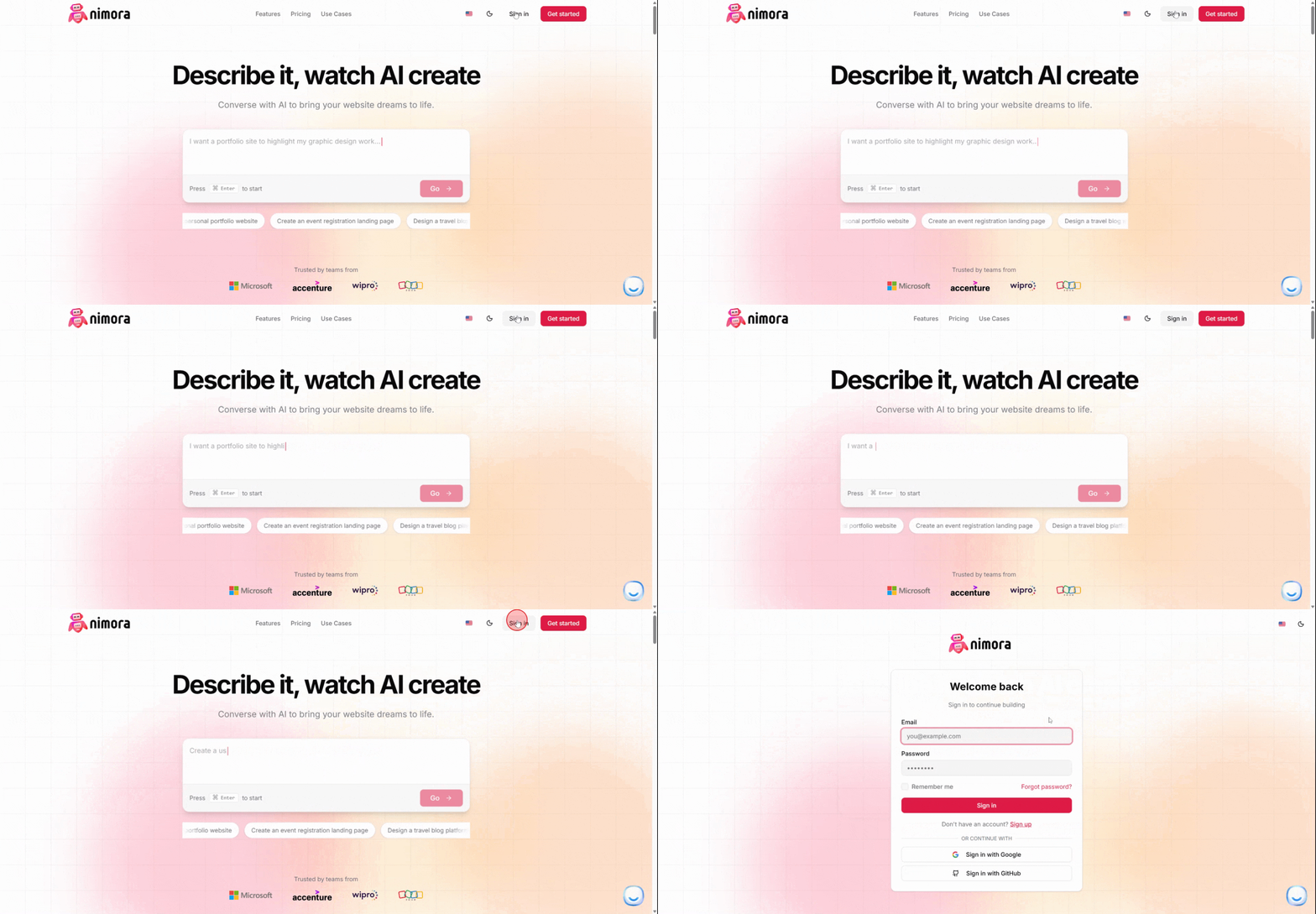
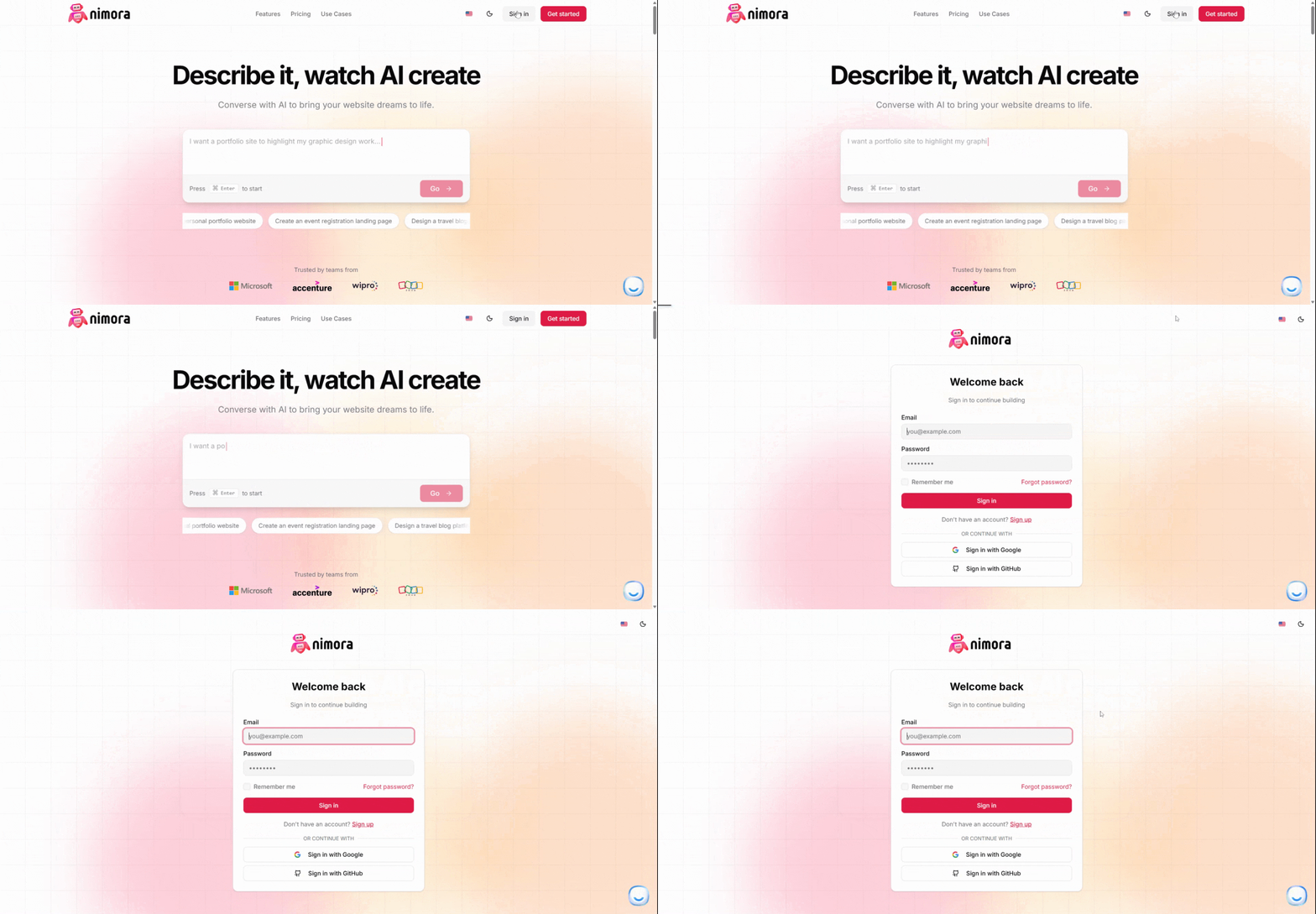
Click Sign Up to create your account. Enter your email and submit.
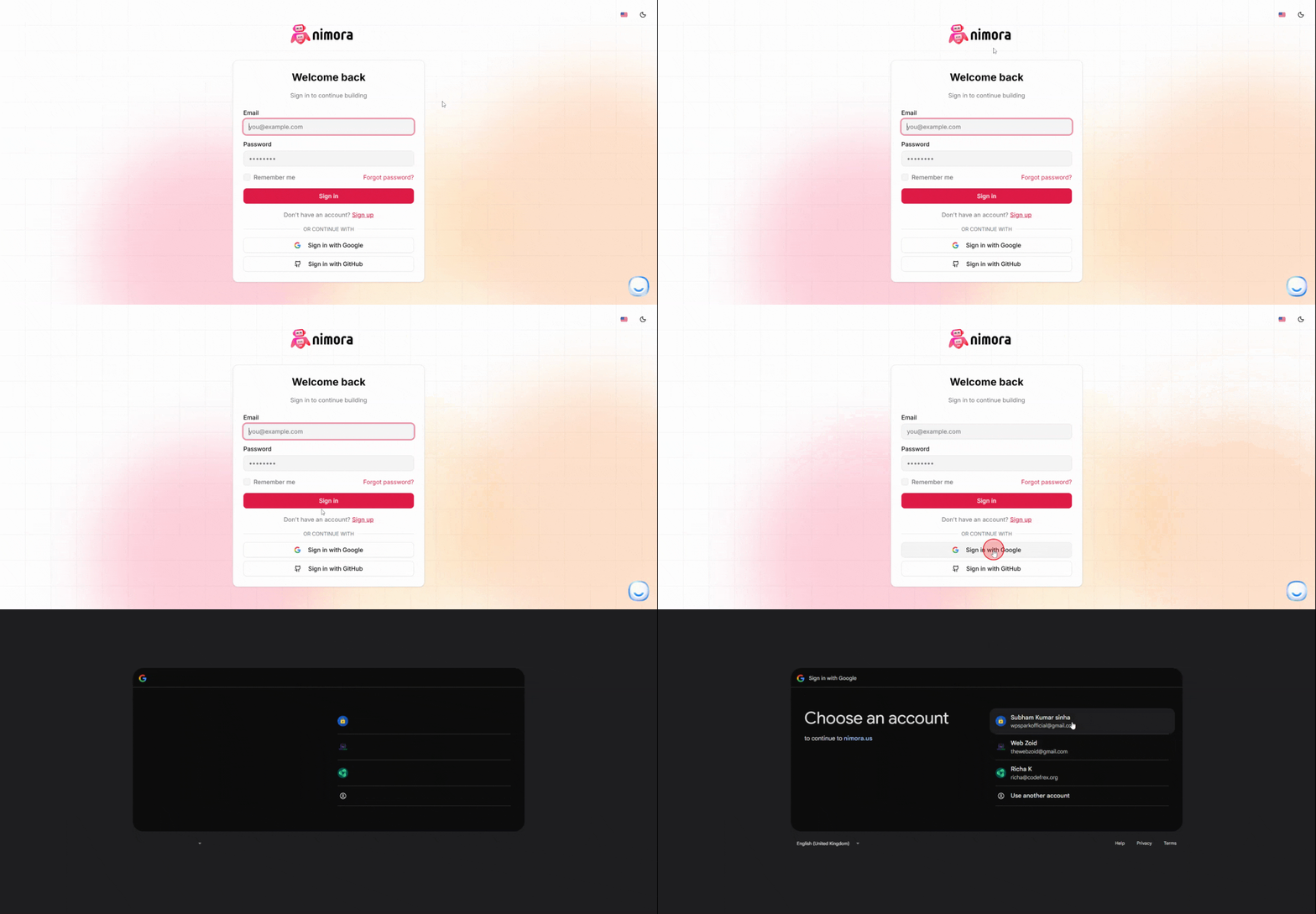
Watch your inbox for a verification code. Enter the code to activate your account and access your personal dashboard.
Opening the Creator
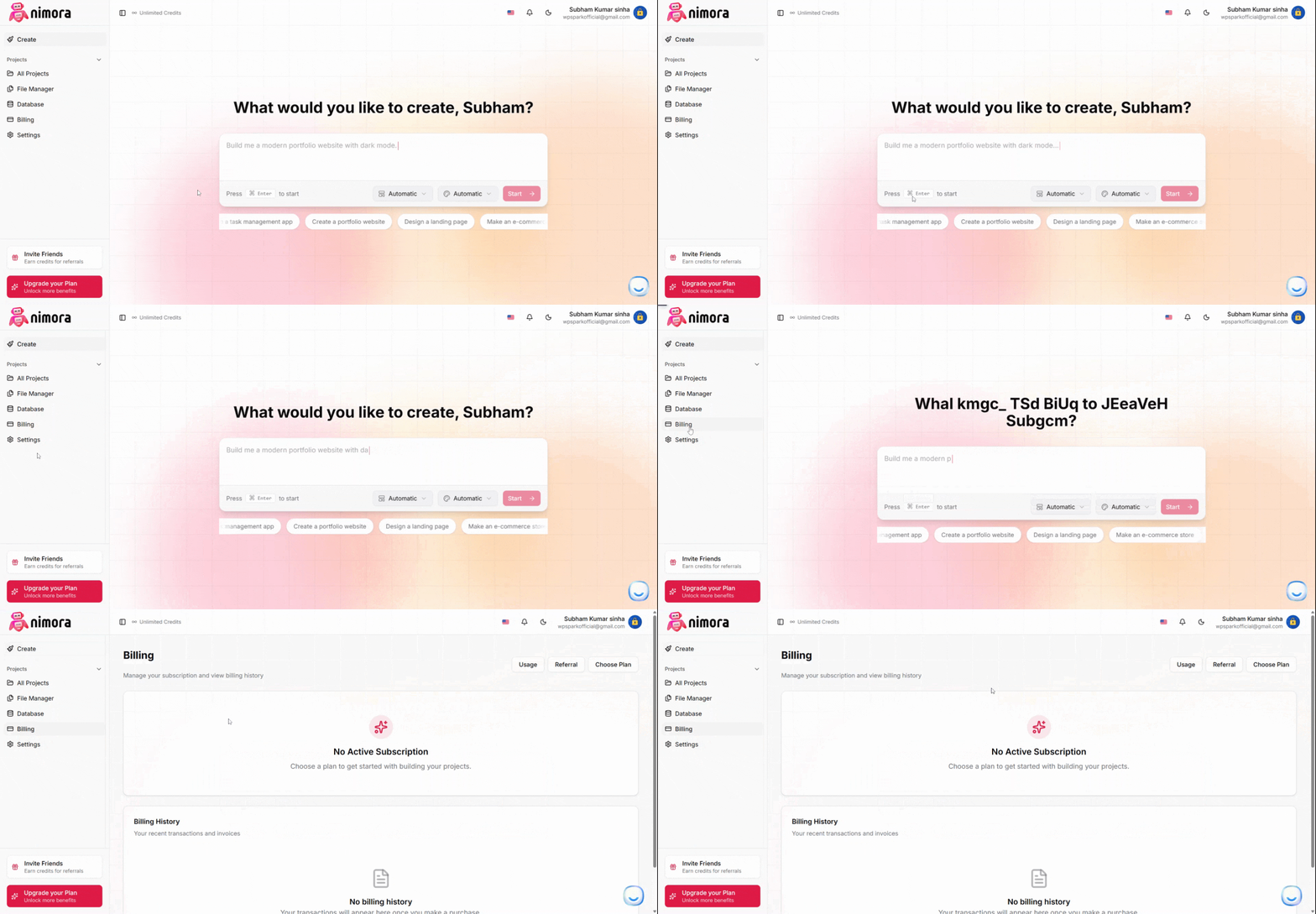
On your dashboard, you’ll see a menu of tools and features. Click the URL link to open the website creator.
Entering Your Project Details
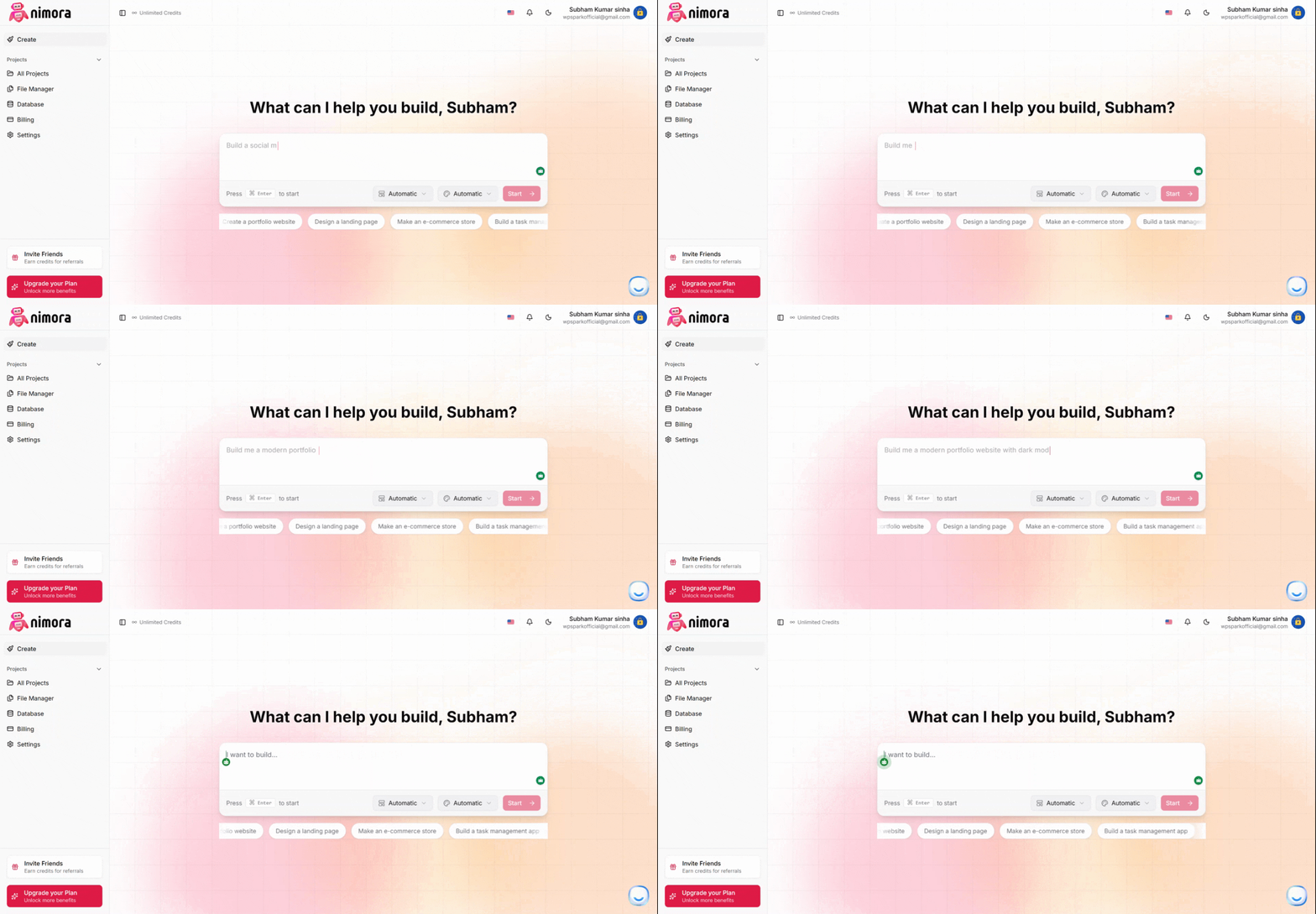
In the creator, you'll find the main control center—your starting point for building a site.
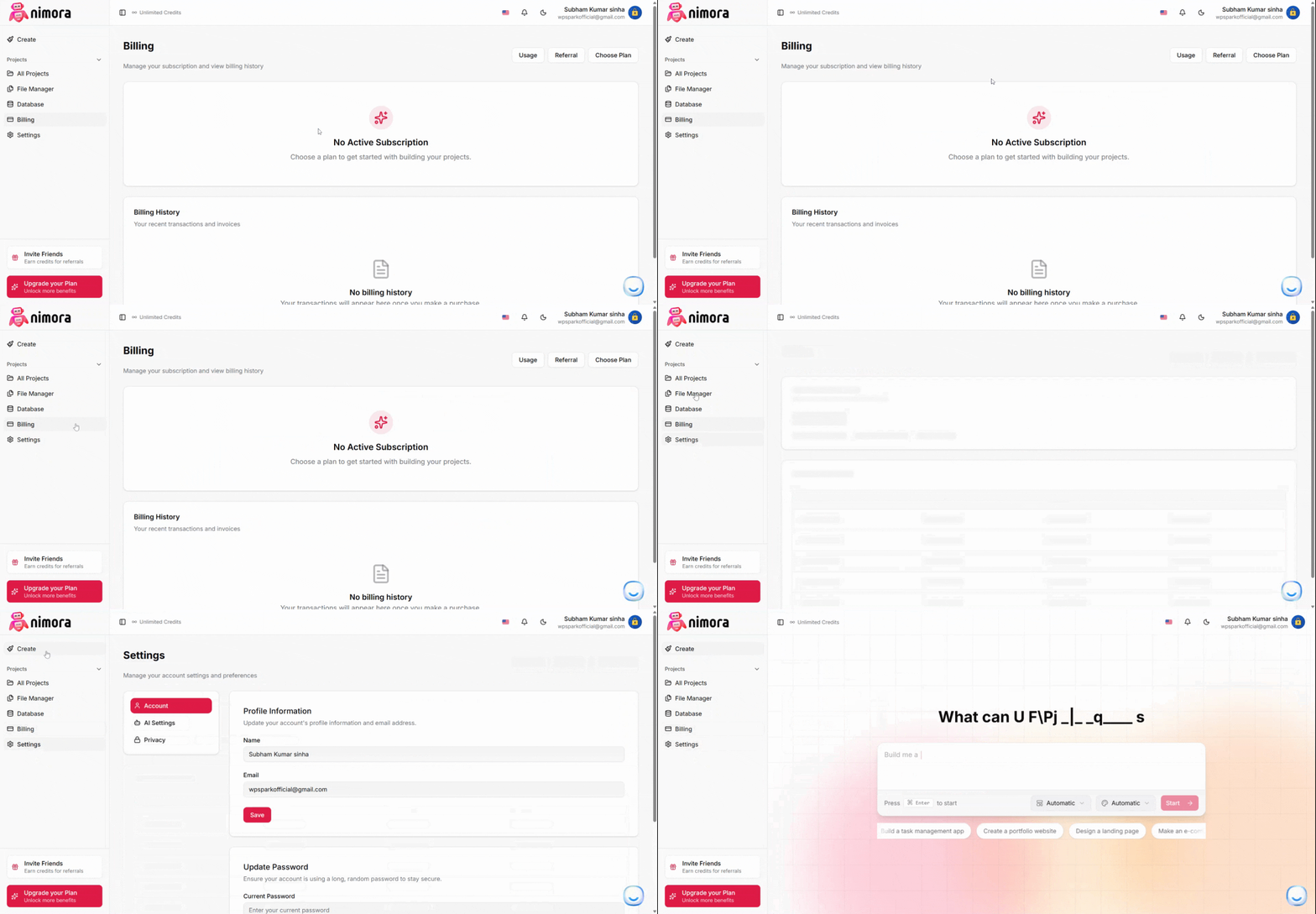
Type your vision in the input box. Describe what you want, such as 'a modern startup website' or 'a cozy shop homepage.'
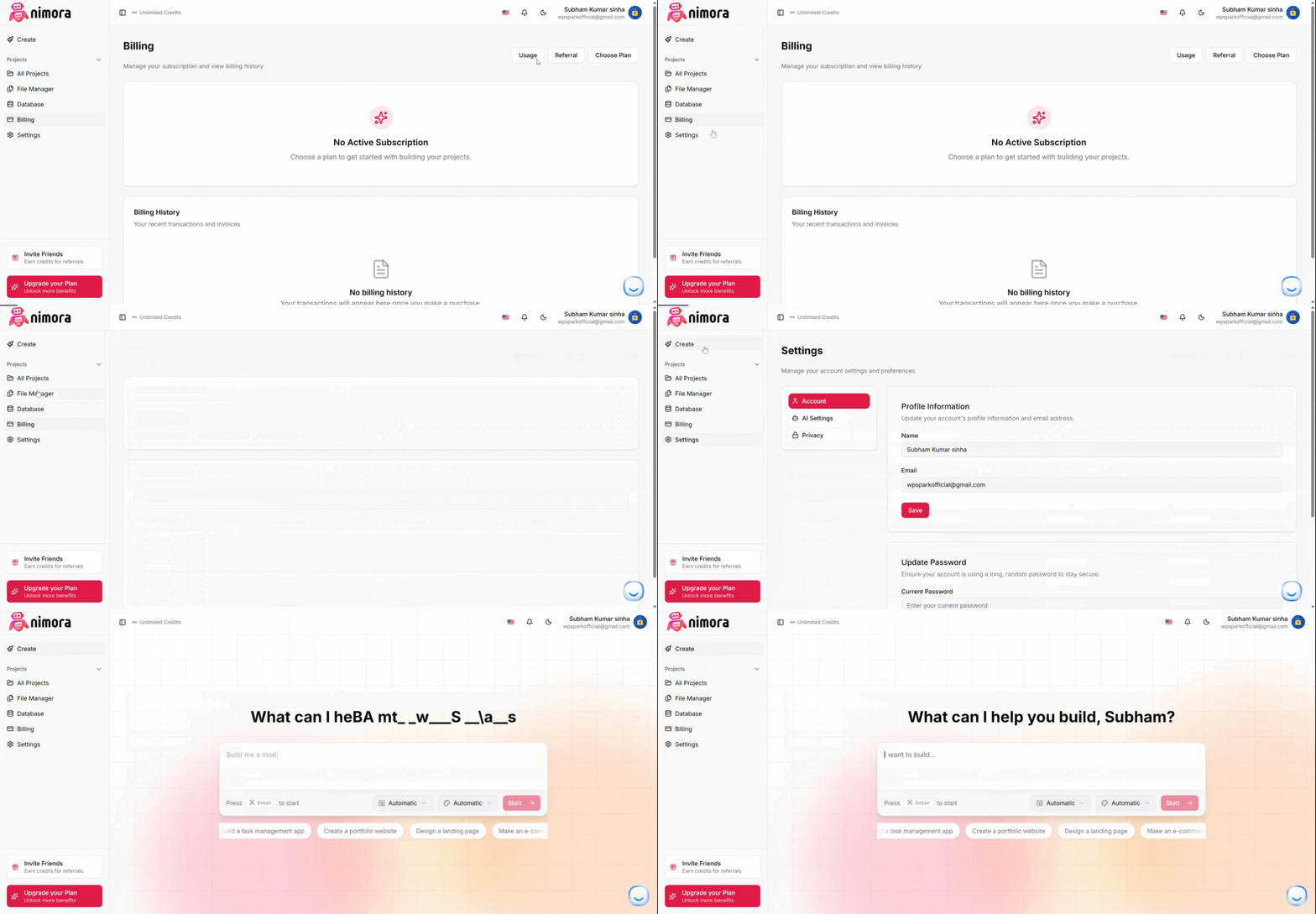
Click the Starter button (or press Enter) to begin the website generation process.
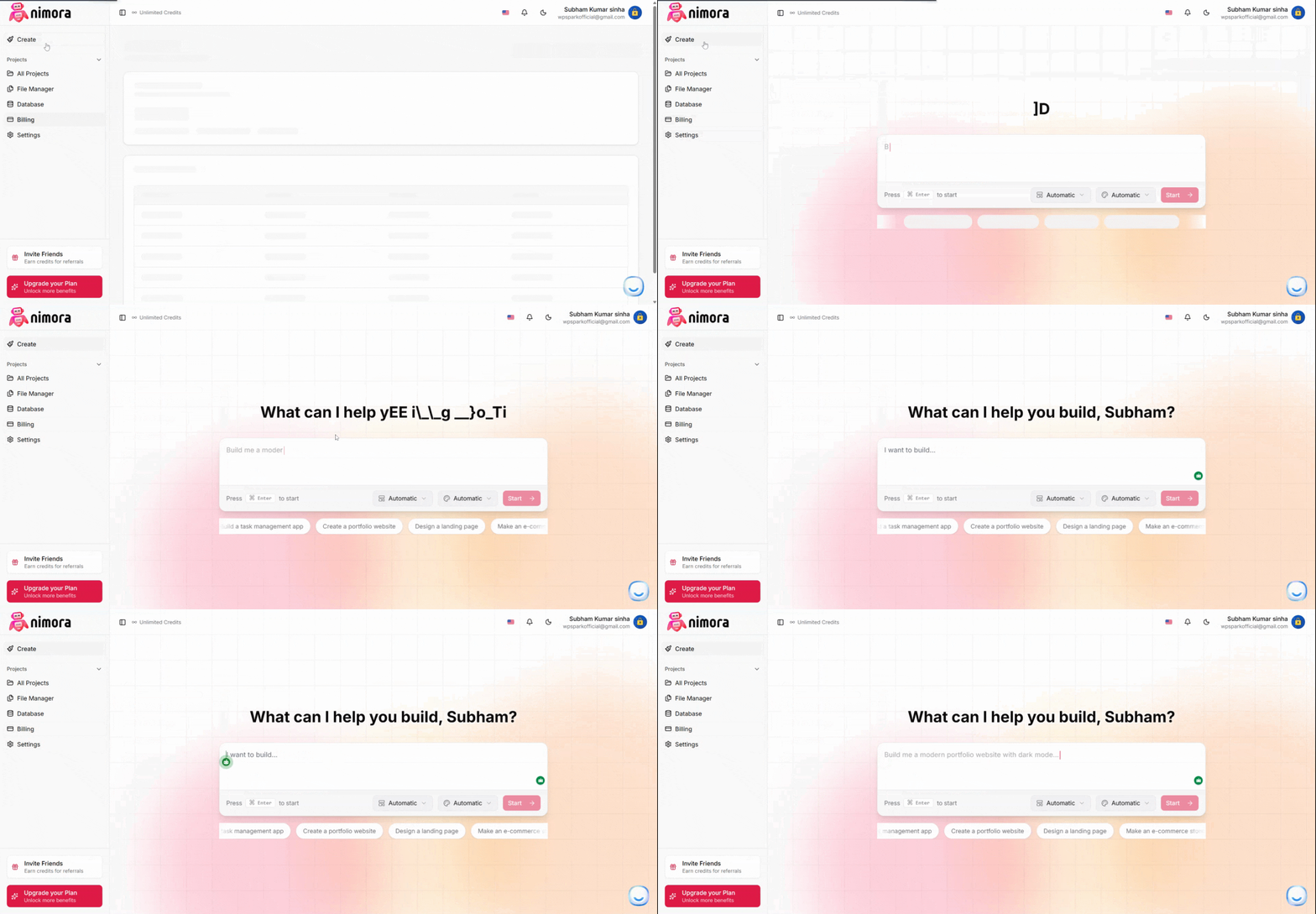
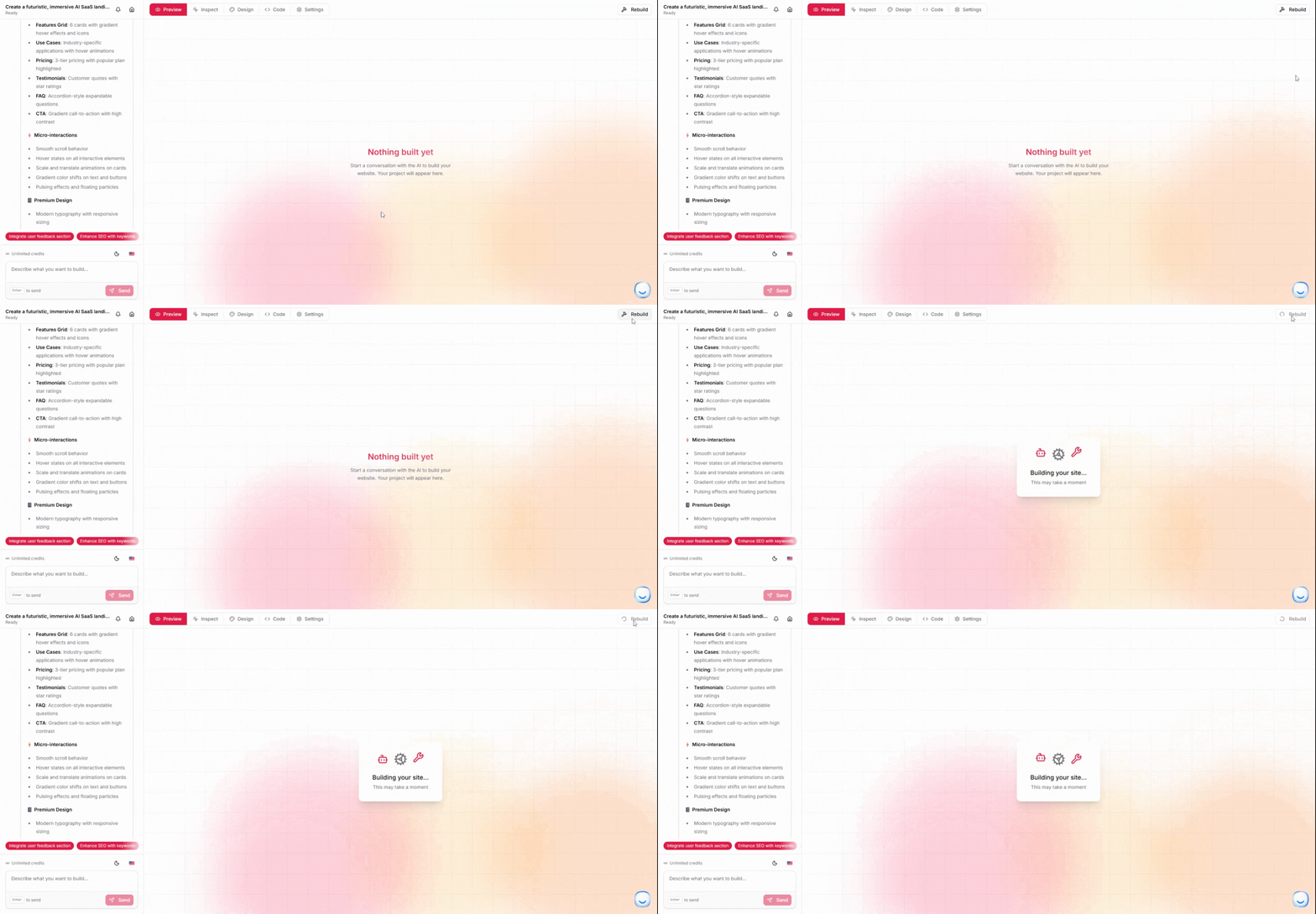
Generating Your Website
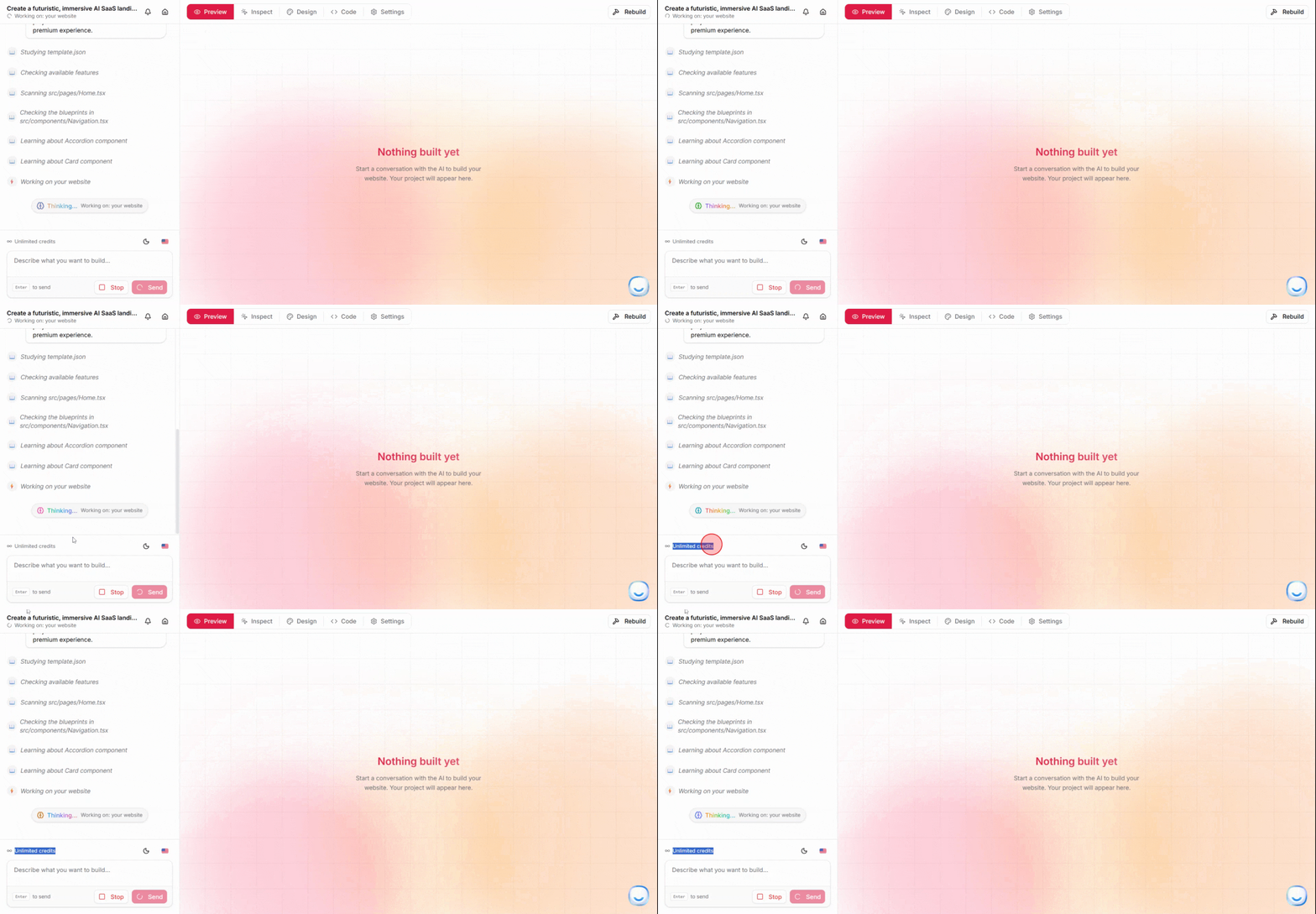
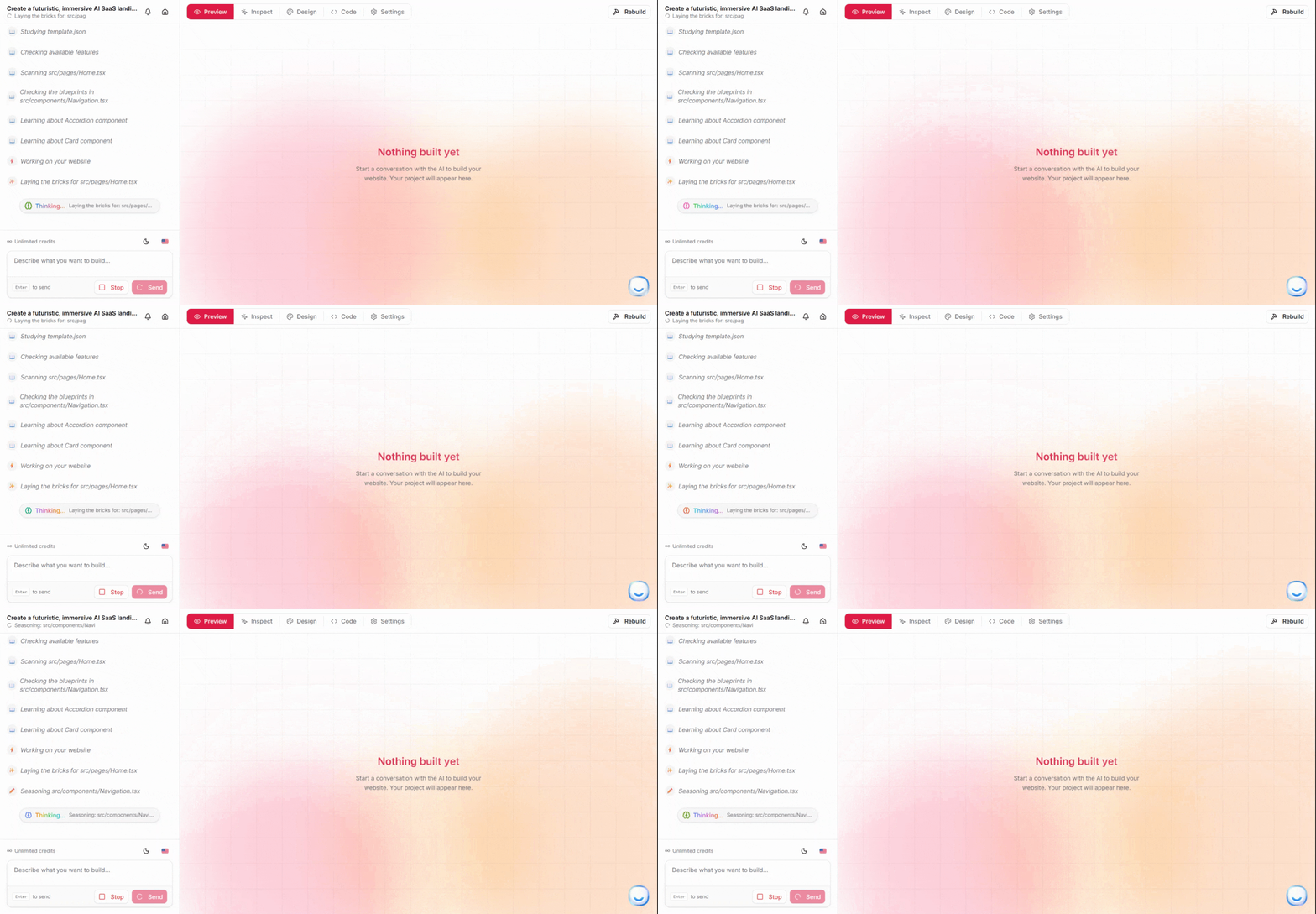
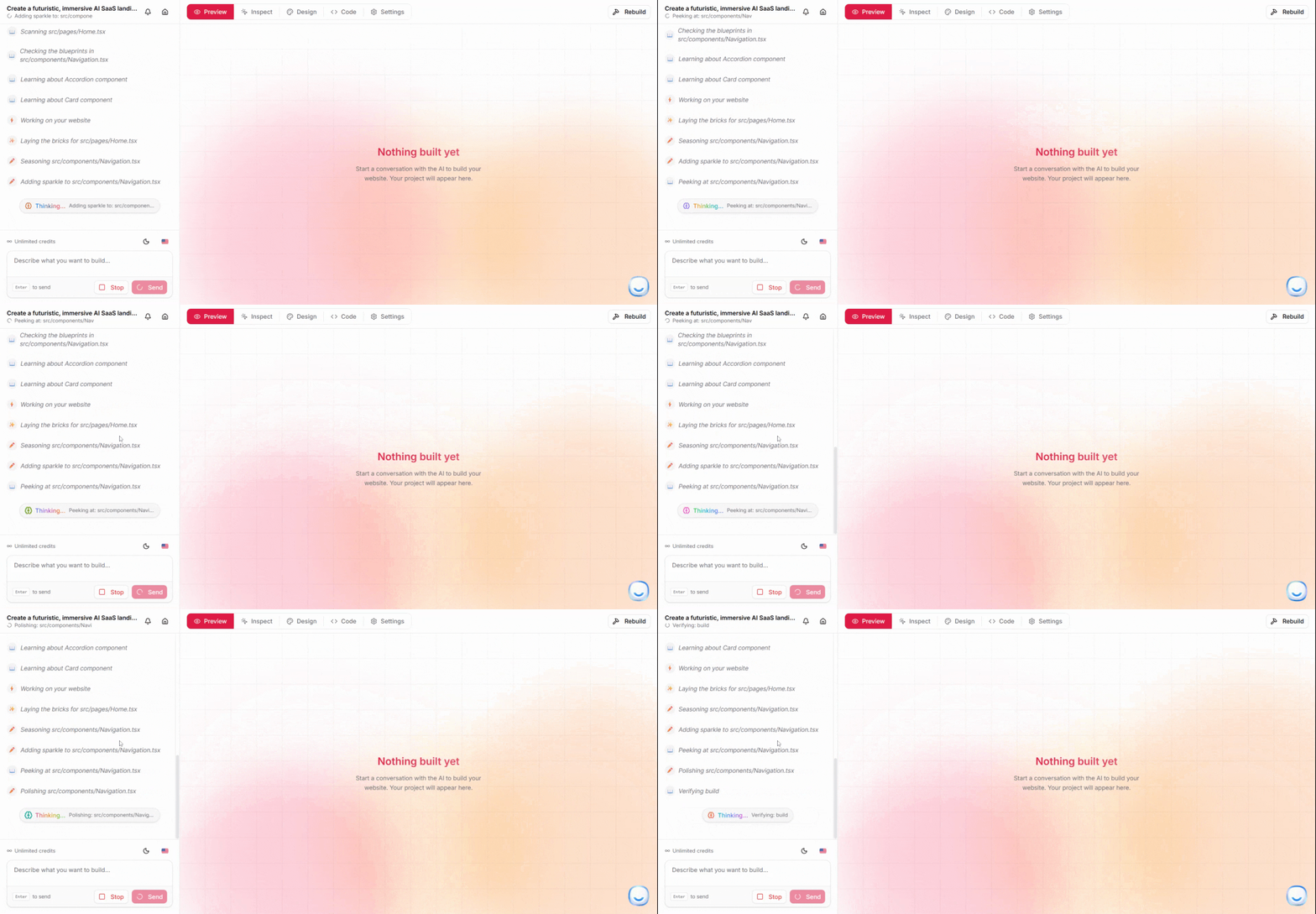
The system processes your description, turning your words into code, layout, and design right before your eyes.
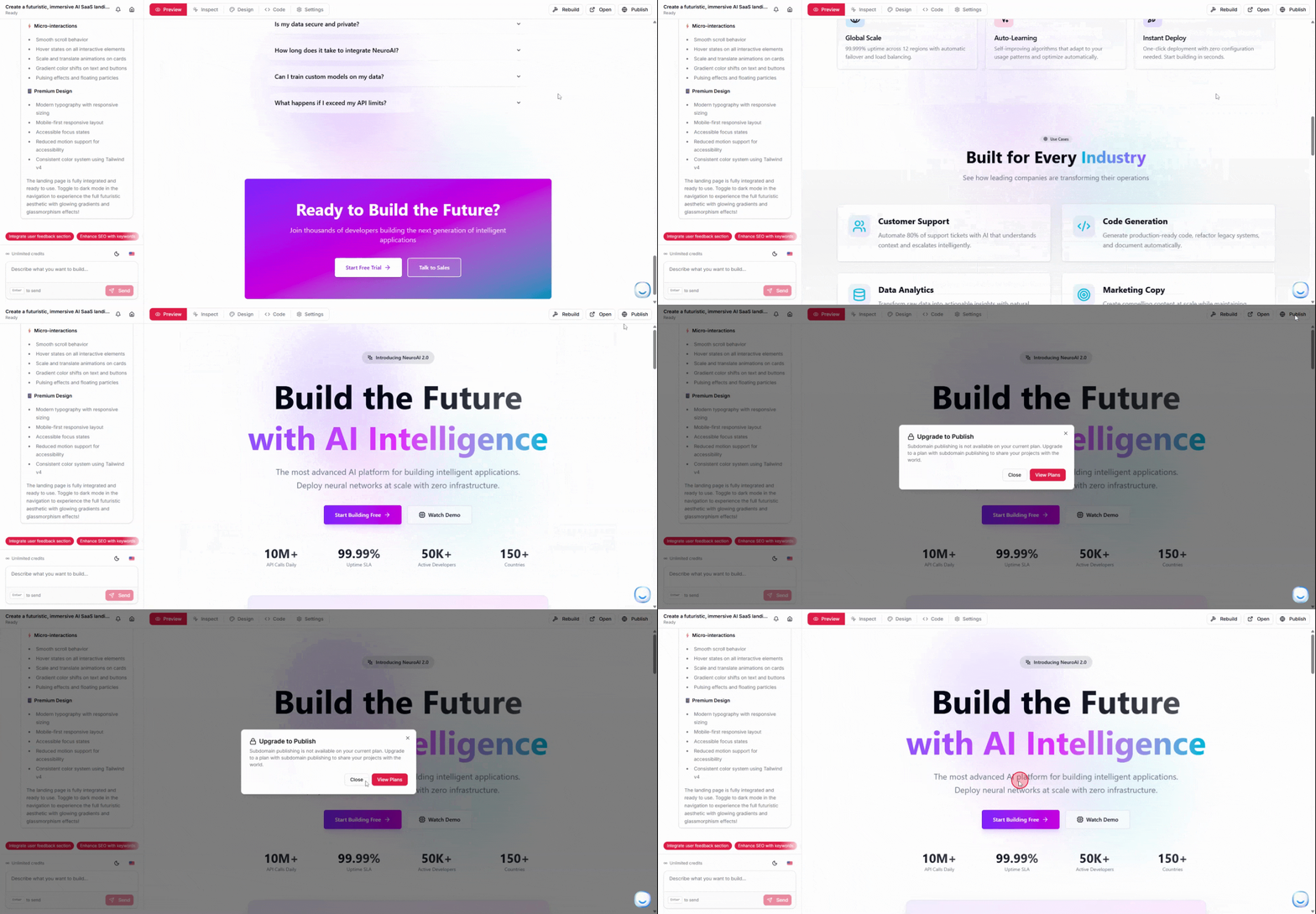
Once completed, your new website appears—built directly from your prompt and ready to use.
Customizing and Editing
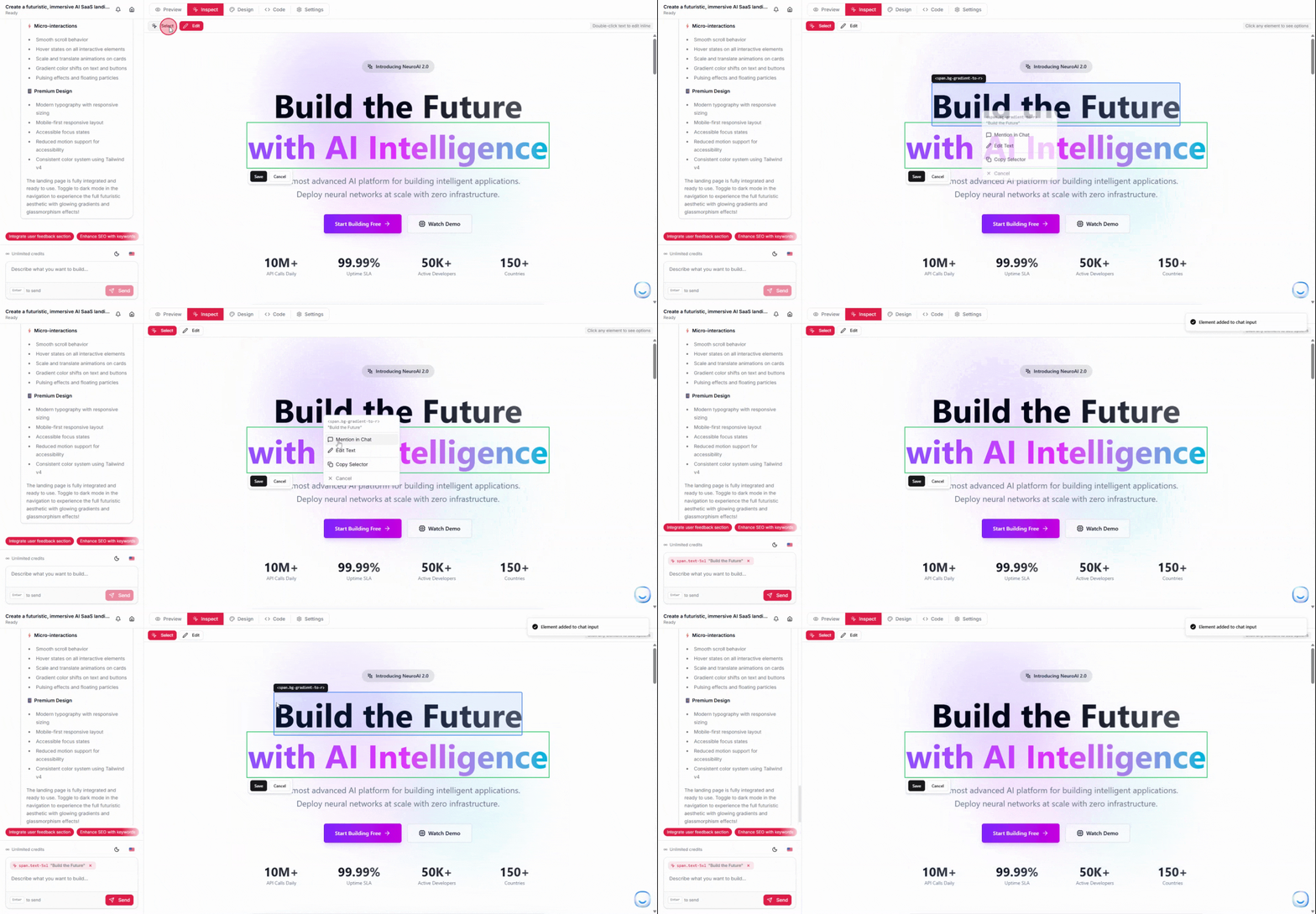
To personalize your site, use the Inspect tool and enter Edit mode. Click any element, select Edit, and update the text or content instantly.
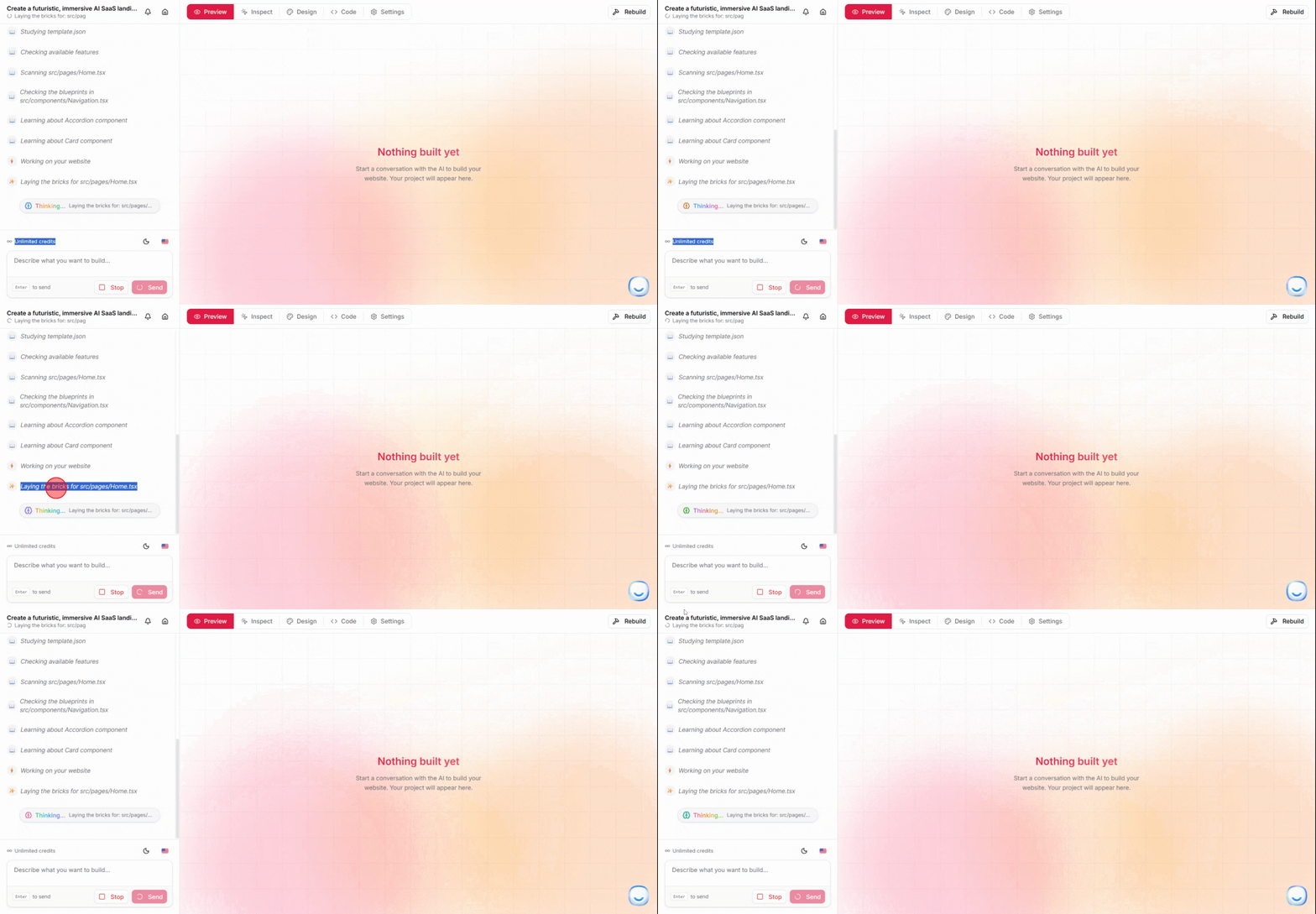
For advanced changes, enter your requests in the built-in chat box. The AI makes the updates in real time—whether it’s resizing headers or tweaking styles.
Open design tools to switch themes, update colors, and fine-tune your site’s appearance—always with a single click.
Click the Code option to view the clean, professional code generated for your site. You have full transparency.
Launching Your Site
Head to Settings to set up your database, manage metadata, and optimize SEO settings for visibility.
Connect a Firebase database or manage your own knowledge base for powerful content management. (These features are available after selecting a plan.)
Ready for the World
When you’re ready, move your site to your own domain and share it with the world. VibeCoding’s toolkit brings advanced database support, built-in SEO, and flexible editing—putting professional-quality websites within everyone’s reach.
Conclusion
No more waiting weeks for a developer or struggling with code. With VibeCoding, just describe your idea and watch your complete website come to life in seconds.